OMR Answer Sheet Auto-Grader
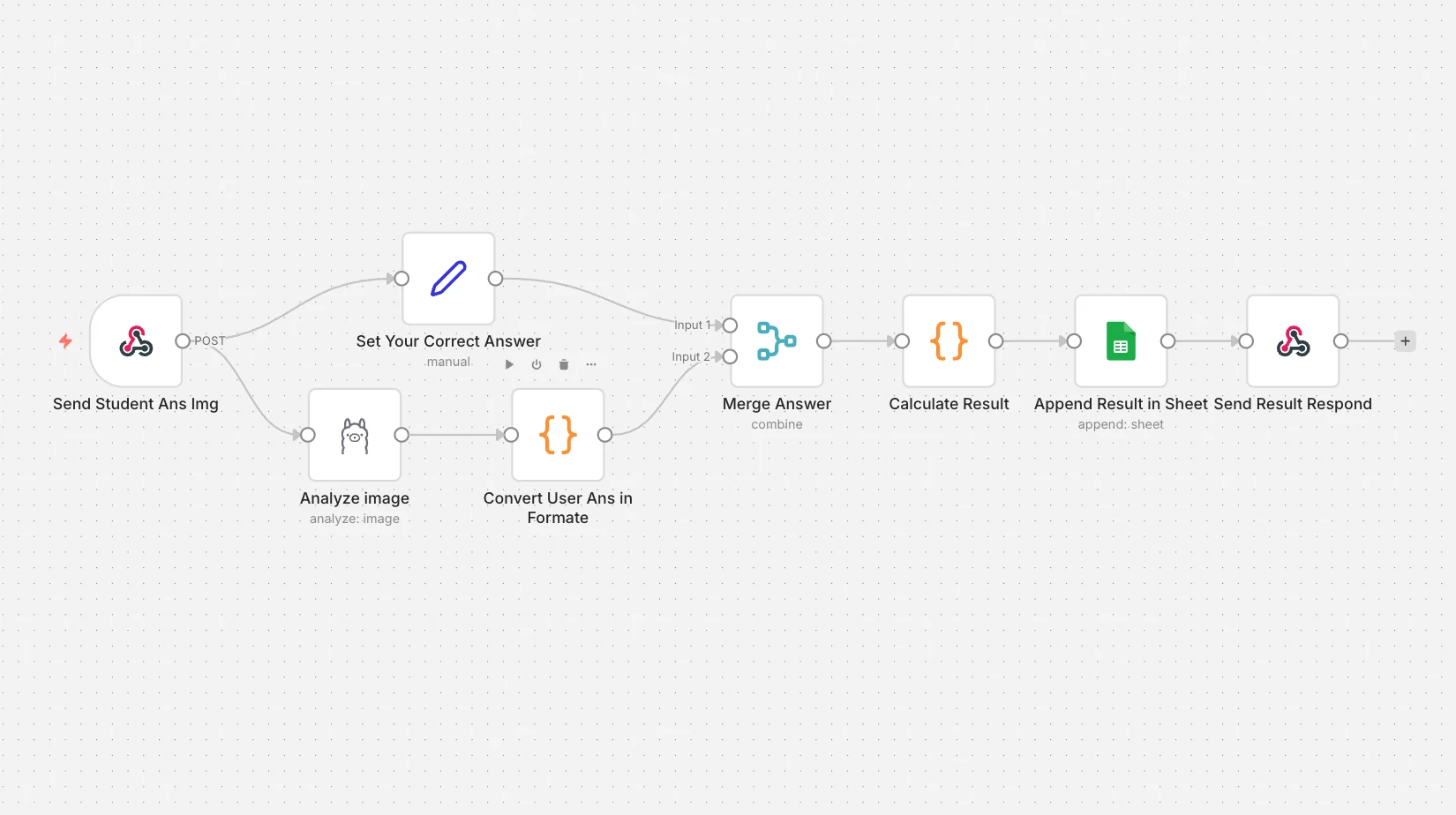
Upload a photo of an OMR sheet and get the score back instantly. AI vision reads the marked answers, they're compared with the answer key, and the result is saved to Google Sheets.
On this page
How it works
- An image is posted to the webhook.
- AI vision reads the student's marked answers.
- The answers are merged with the correct answer key and the score is calculated.
- The result is returned and appended to the sheet.
Use cases
- Schools and coaching centers
- Mock tests and entrance prep
- Internal assessments
What you need
This workflow connects to these apps.
- Code
- n8n
- Google Sheets


You'll need an n8n instance, on n8n Cloud or self-hosted, and these credentials. Our credentials guide shows how to create each one.
- Google Sheets account
- Ollama account

Data setup
Create these tables with these exact column names before the first run.
| Table | Columns |
|---|---|
| Students Result → Sheet1Google Sheets | Student NameRoll NoClassQ.1Q.2Q.3Q.4Q.5Q.6Q.7Q.8Q.9Q.10Q.11Q.12Q.13Q.14Q.15Q.16Q.17Q.18Q.19Q.20CorrectIncorrectScore Percentage |
Setup
- Download the JSON and import it into n8n with Import from File, or copy it and paste it onto an empty canvas. The import guide walks through both.
- Connect the credentials listed above.
- Point the Sheets, Airtable, Drive, and Slack nodes at your own files and channels.
- Replace placeholder emails, phone numbers, and form links with your own.
- Times use the America/New York timezone and dates use MM/DD/YYYY. Change them if you need to, then test and activate. The setup guide covers this step by step.
Nodes
| Node | Type |
|---|---|
| Analyze image | ollama |
| Merge Answer | merge |
| Calculate Result | code |
| Send Result Respond | respondToWebhook |
| Convert User Ans in Format | code |
| Set Your Correct Answer | set |
| Send Student Ans Img | webhook |
| Append Result in Sheet | googleSheets |
Frequently asked questions
Upload a photo of an OMR sheet and get the score back instantly. AI vision reads the marked answers, they're compared with the answer key, and the result is saved to Google Sheets. It's a 9-node n8n workflow.
An n8n instance, on n8n Cloud or self-hosted, and credentials for Google Sheets and Ollama. It uses only nodes that ship with n8n, so there's nothing else to install.
It works with 1 table in Google Sheets. Create it with the column names listed under Data setup on this page before the first run.
Download the JSON, then in n8n create a new workflow, open the menu in the top right, and choose Import from File. You can also copy the JSON and paste it onto an empty canvas.
Yes. It's free to download, import, and change, with no sign-up. You only pay for the apps it connects to, where those aren't free on your plan.